
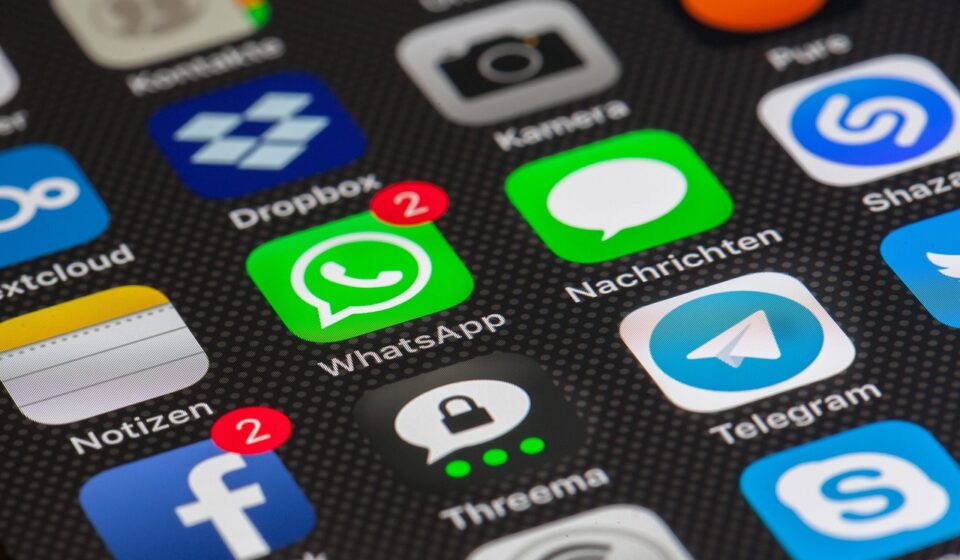
Navigating the App Migration: Why Transferring Apps Matters
This guide covers everything about how to transfer apps to new phone. For anyone upgrading their smartphone, the question of how to transfer apps to a new phone is paramount. As of May 2026, a new device often means leaving behind familiar digital tools. The process can seem daunting, but with the right approach, it’s more straightforward than ever. Whether you’re moving from an older Android to a newer model, switching from an iPhone to an Android, or vice versa, ensuring your essential applications and their data make the journey is key to a smooth transition.
A recent survey by Tech Insights revealed that over 70% of users consider app migration a critical factor when deciding on a new device, citing the time saved and the continuity of their digital lives. This guide will walk you through the most effective methods, from built-in operating system tools to third-party solutions, ensuring your digital ecosystem moves with you.
- Both Android and iOS offer built-in tools for transferring apps and data to a new device during setup.
- Cloud backups (Google Drive for Android, iCloud for iPhone) are crucial for restoring apps and settings.
- Cross-platform transfers (Android to iPhone, iPhone to Android) often require specific apps or manual steps.
- Third-party transfer tools can offer more flexibility but may come with costs or privacy considerations.
- Always check app-specific backup options for crucial data that might not transfer automatically.
using Native Transfer Tools: Android and iOS
Both major mobile operating systems have significantly improved their native data transfer capabilities. When you first power on a new Android phone, you’re typically prompted to restore from a previous device or a cloud backup. Similarly, setting up a new iPhone guides you through restoring from an iCloud backup or transferring directly from another iPhone.
These built-in features are designed to be complete, aiming to move not just your applications but also their associated data, settings, photos, contacts, and call logs. For instance, Android’s “Copy apps and data” feature, often initiated via a USB cable connection or Wi-Fi, can migrate nearly everything. According to Google’s developer documentation, this process leverages secure protocols to ensure data integrity during transit.

The primary advantage of using these native tools is their deep integration with the operating system, which often results in a more complete and reliable transfer. Apple’s iOS, for instance, uses Migration Assistant during setup, which can transfer your apps, settings, and data directly from your old iPhone or an iCloud backup. This can save hours compared to manually reinstalling and reconfiguring each app.
Android to Android App Transfer
Transferring apps between Android phones is perhaps the most straightforward. During the initial setup of your new Android device, you’ll be given options to restore from a Google account backup or copy data directly from your old phone. The direct transfer, often facilitated by a cable or a Wi-Fi direct connection, is usually faster and more complete.
When you connect your old and new Android phones, the setup process will guide you through selecting what you want to transfer, including apps. Your Google account plays a vital role here; apps purchased or downloaded from the Google Play Store are linked to your account, allowing them to be re-downloaded onto the new device. Settings like Wi-Fi passwords and wallpaper are also often included in the backup.
A practical insight: Ensure both phones are connected to a stable Wi-Fi network or have a full battery charge if using the wireless transfer method. For cable transfers, use a high-quality USB-C cable to avoid interruptions. According to Android Central’s May 2026 analysis of Android 17 beta features, direct device-to-device transfers are becoming even more strong, with faster speeds and fewer compatibility issues.
iPhone to iPhone App Transfer
Apple’s ecosystem is well-known for its smooth integration. When setting up a new iPhone, you’ll typically see an “Apps & Data” screen offering three main options: Restore from iCloud Backup, Restore from Mac or PC, or Move Data from Android. If you’re moving from an older iPhone, “Restore from iCloud Backup” is often the most convenient.
Before you begin, ensure your old iPhone is backed up to iCloud. You can check this by going to Settings > [Your Name] > iCloud > iCloud Backup and tapping “Back Up Now.” Once your new iPhone is on and near your old one, the “Quick Start” feature can also facilitate a direct, wireless transfer of settings, apps, and data. This method is particularly effective for moving everything over without needing a computer.
For users who prefer a wired connection or have a large amount of data, restoring from a Mac or PC backup via Finder (on macOS Catalina or later) or iTunes (on older macOS versions or Windows) is another reliable method. This ensures a complete transfer of your apps, settings, and device configurations. A recent Popular Science article highlighted that Apple continues to refine these transfer methods with each iOS update, aiming for greater speed and reliability in 2026.
Cross-Platform App Transfers: Android to iPhone and Vice Versa
Moving between different operating systems presents more challenges, but manufacturers have developed solutions. The most common scenarios are transferring from Android to iPhone and from iPhone to Android. These transfers often involve dedicated apps provided by the receiving platform’s manufacturer.
For Android to iPhone transfers, Apple provides the “Move to iOS” app, available on the Google Play Store. During the iPhone setup process, when you reach the “Apps & Data” screen, select “Move Data from Android.” Following the on-screen prompts will guide you to download and open “Move to iOS” on your Android device. The app then creates a private Wi-Fi network to transfer contacts, message history, photos, videos, web bookmarks, mail accounts, calendars, and crucially, compatible apps. Not all Android apps have direct iOS equivalents, and the app will list which ones can be downloaded from the App Store.
Conversely, when moving from an iPhone to an Android phone, Google offers the “Switch to Android” tool. This can be accessed via a dedicated app or through the setup process on many new Android devices. Similar to “Move to iOS,” it facilitates the transfer of contacts, photos, videos, calendar events, and message history. For apps, the process is less direct. Your Android phone will often suggest corresponding apps from the Google Play Store for those you had on your iPhone. For example, if you use Google Photos on iOS, your photo library will sync easily to Android via Google Drive.
It’s important to note that not all apps have direct cross-platform counterparts. Some apps are exclusive to one operating system. In such cases, you may need to find alternative apps on your new platform or accept that certain functionalities will require a different solution. For purchased apps that are platform-specific, you will likely need to repurchase them on the new OS, as app store purchases are not transferable between iOS and Android.
Utilizing Cloud Backups for App Data
Cloud backup services are indispensable for safeguarding app data and settings, especially when a direct device-to-device transfer isn’t feasible or when you want an extra layer of security. Google Drive for Android and iCloud for iOS are the primary cloud solutions.
For Android users, Google Drive can back up app data, call history, contacts, device settings, and SMS messages. This backup is often performed automatically when the phone is connected to Wi-Fi and charging. When setting up a new Android phone, signing in with your Google account allows you to restore from this cloud backup. However, the comprehensiveness of app data backup can vary by app; some developers implement Google Drive backup for their data, while others don’t.
iCloud backups for iPhones are similarly complete, capturing app data, device settings, home screen layout, app purchase history, and more. By enabling iCloud Backup on your old iPhone, you create a snapshot of your device’s state that can be used to restore a new iPhone. As of May 2026, Apple offers 5GB of free iCloud storage, with paid tiers available for more space. This is a critical consideration if you have many apps or large data sets.
A key practical tip: Regularly check your cloud backup settings. For critical apps like WhatsApp, which often have their own cloud backup options (e.g., WhatsApp backup to Google Drive or iCloud), ensure these are enabled and updated. How to transfer apps to new phone provides an additional safeguard for your chat history and media, which might not always be fully captured by the general OS backup.
Third-Party Transfer Tools: When Native Isn’t Enough
While built-in tools are strong, sometimes you need more flexibility, or you’re dealing with older devices or specific transfer scenarios that native options don’t fully cover. Several third-party software solutions can assist with phone app transfers.
Companies like Mobile Trans, Any Trans, and Dr. Fone offer desktop software that can connect to both your old and new phones (via USB) and facilitate a more granular transfer of data, including apps. These tools often boast higher success rates for specific app data, can transfer data between devices that don’t natively support direct transfer (e.g., older OS versions), and may offer additional features like data recovery or system repair.
The advantage of these tools is their cross-compatibility and advanced features. For example, some can transfer specific app data (like game progress or social media chat logs) that native backups might miss. However, they typically require a paid license, and users should exercise caution regarding data privacy and security when using third-party software. Always choose reputable providers with clear privacy policies. According to a May 2026 review by TechRadar, while these tools can be powerful, users should verify compatibility with their specific phone models and operating system versions.
From a different angle, some manufacturers offer their own proprietary transfer apps. Samsung’s Smart Switch, for example, is highly effective for moving data to a new Samsung device from various sources, including iPhones. Similarly, Huawei’s Phone Clone and Xiaomi’s Mi Mover are designed to simplify the migration process to their respective brands. If you’re staying within the same brand ecosystem, these proprietary apps are often the best first option to explore.
Manual App Transfer and Reconfiguration
In certain situations, a direct or cloud-based transfer might not be ideal, or you might prefer a completely fresh start. This is where manual app transfer comes into play. While more time-consuming, it allows for meticulous control over what gets transferred.
The process involves signing into your Google or Apple account on your new phone and manually downloading each app from the respective app store (Google Play Store for Android, App Store for iOS). You’ll then need to sign back into each app. This approach is beneficial for decluttering, removing bloatware (pre-installed apps you don’t need), and ensuring you only reinstall essential applications. It’s also useful if you’ve encountered issues with automatic transfers in the past.
What this means in practice: Make a list of all the apps you use regularly on your old phone. Then, on your new phone, systematically download and set them up. For apps that store data locally (like some note-taking apps or offline games), you may need to manually transfer those files if they weren’t included in an OS-level backup. This can sometimes be done via a computer, by connecting your old phone and copying the relevant app data folders.
A benefit of this method is that it forces you to re-evaluate your app usage. You might discover apps you no longer need, leading to a cleaner and more streamlined experience on your new device. This manual approach is also the most effective way to ensure you’re not carrying over old issues or unnecessary data from your previous phone.
Common Mistakes During App Transfer and How to Avoid Them
Despite the advancements in transfer technology, users still encounter pitfalls. Understanding these common mistakes can save you significant frustration.
One frequent error is not having a complete backup of the old phone before initiating the transfer. If the transfer process fails, or if you factory reset your old phone too soon, you could lose valuable data. Always confirm that a recent, successful backup (cloud or local) exists for your old device before proceeding with any transfer to a new one.
Another mistake is assuming all app data will transfer automatically. OS backups covers while many apps, others, especially those with sensitive data or unique saving mechanisms, may require separate backup procedures. For example, banking apps or authenticator apps often have their own security measures that prevent direct data migration, requiring you to re-authenticate or set them up from scratch on the new device. According to CNET’s May 2026 guide on pre-upgrade steps, users should always verify app-specific backup needs.
Failing to check app compatibility is also a common pitfall, particularly for cross-platform transfers. An app available on Android might not exist on iOS, or vice versa. Before you commit to a new platform, research whether your must-have apps have equivalents. Similarly, ensure your new phone runs a recent enough operating system version to support the apps you intend to transfer.
Finally, rushing the process without a stable internet connection or sufficient battery power can lead to incomplete transfers. Ensure your Wi-Fi is strong and consistent, and that both devices are plugged in or have ample charge, especially for large data transfers that can take several hours.

Expert Tips for a Smooth App Migration in 2026
To ensure your app transfer goes as smoothly as possible, consider these expert-recommended practices:
1. Declutter First: Before transferring, spend time on your old phone uninstalling apps you no longer use. This reduces the amount of data to transfer, speeds up the process, and cleans up your new device from the start. Android Police reported in May 2026 that users who remove bloatware often see performance improvements.
2. Organize Your Apps: On your old phone, group similar apps into folders on your home screen. This can help you remember which apps you need to re-download or reconfigure manually on the new device.
3. Check App-Specific Backups: For critical applications like banking apps, authenticator apps (e.g., Google Authenticator, Authy), and messaging apps (e.g., WhatsApp), always check if they offer their own cloud backup options. Set these up and ensure they are recent.
4. Update Old Phone’s OS: Before backing up or transferring, ensure your old phone is running the latest possible version of its operating system. This often improves compatibility and ensures the most up-to-date data is backed up.
5. Update New Phone’s OS: Similarly, upon setting up your new phone, immediately check for and install any available operating system updates. This ensures compatibility with the latest apps and transfer protocols.
6. Use a Cable for Major Transfers: While wireless transfers are convenient, a USB cable connection between devices often provides a more stable and faster transfer, especially for large volumes of data. This is particularly true for direct device-to-device migrations.
7. Verify After Transfer: Once the transfer is complete, spend time on your new phone checking that all essential apps are present and functioning correctly. Log into apps, test key features, and ensure your data has been restored. This verification step is crucial.
Frequently Asked Questions
How long does it take to transfer apps to a new phone?
The duration varies significantly based on the method used, the amount of data, and your internet speed. Native OS transfers can range from 30 minutes to several hours. Cloud restores depend on download speeds and backup size. Manual transfers can take days if you have hundreds of apps.
Can I transfer apps from an Android phone to an iPhone?
Yes, you can transfer many apps and data from Android to iPhone using Apple’s “Move to iOS” app. It transfers contacts, messages, photos, and compatible apps. Some apps may need to be re-downloaded manually from the App Store.
Can I transfer apps from an iPhone to an Android phone?
Yes, you can transfer many apps and data from iPhone to Android using Google’s “Switch to Android” tool or by signing into your Google account on the new phone. It moves contacts, photos, messages, and suggests comparable apps from the Google Play Store.
Do I have to repurchase apps on my new phone?
Generally, you don’t need to repurchase apps that are tied to your account on the same operating system ecosystem (e.g., Google Play apps on a new Android, App Store apps on a new iPhone). However, if you switch operating systems (e.g., iPhone to Android), you will likely need to repurchase platform-specific apps.
What happens to my app data when I transfer phones?
Most OS-level transfers and cloud backups aim to transfer app data, including settings, login information, and in-app progress. However, some apps manage their data independently and might require manual backup or re-setup within the app itself. Always check individual app backup options.
Can I transfer apps without a Wi-Fi connection?
Yes, many transfer methods support wired (USB cable) transfers, which don’t require Wi-Fi. Direct device-to-device transfers also often use a Wi-Fi Direct connection, which is established between the phones themselves and doesn’t rely on your home network. Cloud restores, however, typically require an internet connection.
Last reviewed: May 2026. Information current as of publication; pricing and product details may change.
Source: Wired
Editorial Note: This article was researched and written by the Novel Tech Services editorial team. We fact-check our content and update it regularly. For questions or corrections, contact us. For readers asking “How to transfer apps to new phone”, the answer comes down to the specific factors covered above.