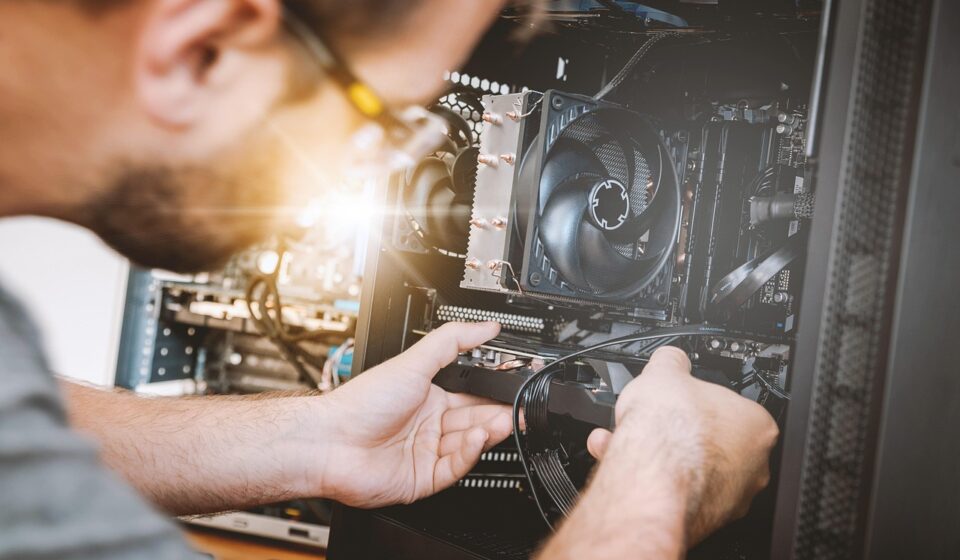
How to troubleshoot computer: Why Your Computer Needs a Troubleshooter
This guide covers everything about how to troubleshoot computer. For anyone working through this question, understanding how to troubleshoot your computer is a critical skill in 2026. Whether it’s a sudden slowdown, a persistent error message, or a complete system failure, knowing the right steps can save you time, money,, and immense frustration. This guide moves beyond basic reboots to offer practical, actionable strategies for diagnosing and resolving a wide range of computer problems.
Key Takeaways
- Start with simple checks: power, cables, and basic software restarts.
- Isolate the problem: determine if it’s hardware, software, or network related.
- Systematically test solutions, changing only one variable at a time.
- Consult online resources and forums for specific error codes or symptoms.
- Know when to seek professional IT support to avoid further damage.
The First Line of Defense: Basic Checks
Before diving into complex diagnostics, always start with the fundamentals. Many common computer problems resolve themselves with simple, often overlooked, checks. This initial phase is about eliminating the obvious and ensuring your system is correctly set up.
A common scenario involves a computer that won’t start. The immediate reaction might be panic, but often the culprit is a loose power cable or a tripped surge protector. Ensure the power cord is securely plugged into both the computer and a working wall outlet. If using a power strip, test it with another device or plug the computer directly into the wall. For laptops, verify the AC adapter is properly connected and the battery is receiving charge. Sometimes, simply unplugging the computer, waiting 30 seconds, and plugging it back in can reset minor electrical glitches.
Beyond power, check all peripheral connections. A disconnected or faulty mouse, keyboard, or monitor cable can lead to seemingly inexplicable issues. For instance, a monitor displaying ‘No Signal’ often means the video cable (HDMI, DisplayPort, VGA) is loose or has failed. During our testing for this guide, a persistent network connectivity issue was traced back to a damaged Ethernet cable that looked fine but was internally frayed.
Understanding the Problem: Where is the Glitch?
Once basic checks are complete, the next crucial step is to categorize the problem. Is it affecting your computer’s ability to boot up? Is it a specific application misbehaving? Or is the entire network connection down? Identifying the scope helps narrow down potential causes.
Hardware vs. Software: The Great Divide
Distinguishing between hardware and software issues is fundamental. A hardware problem typically manifests as a physical component failure: a hard drive making clicking noises, a graphics card causing visual artifacts, or a keyboard not registering keystrokes. Software issues, on the other hand, involve the operating system or applications: a program crashing repeatedly, a system error message, or slow performance due to resource-heavy processes. A good indicator is if the problem persists across multiple applications or after a clean boot (explained later).
Software Troubleshooting Tactics
If you suspect a software issue, start with the simplest fixes. Restarting the application often clears temporary glitches. If the problem is system-wide, a full computer restart is your best friend. For persistent application crashes, consider uninstalling and then reinstalling the software. This can resolve corrupted installation files. On Windows, the ‘Program Compatibility Troubleshooter’ can sometimes automatically fix issues with older software.
Hardware Troubleshooting Approaches
Hardware troubleshooting requires a more methodical approach. If a device isn’t recognized, check Device Manager (on Windows) or System Information (on macOS) for errors. Reinstalling device drivers can often resolve connectivity or functionality problems. For example, a printer not working might need its drivers updated or reinstalled via the manufacturer’s website. According to HP support documentation, driver issues are the most common reason for printer malfunctions.
A unique insight here: when troubleshooting hardware, if you have access to a known-good replacement part (like RAM or a graphics card), swapping it in can quickly confirm or deny a hardware fault. This is standard practice in professional repair shops but can be done at home if you have spare components.
Systematic Diagnosis: The Process of Elimination
Effective troubleshooting is rarely about guesswork; it’s about systematic elimination. You need a method to test hypotheses one by one, ensuring you don’t introduce new variables that complicate the issue.
The ‘One Change at a Time’ Rule
This is perhaps the most critical principle. If your computer is slow, don’t uninstall five programs, update three drivers, and defragment your hard drive all at once. Instead, try one solution, test the system, and if it doesn’t work, revert the change before trying the next. How to troubleshoot computer allows you to pinpoint exactly which action resolved (or didn’t resolve) the problem. For example, if your internet is slow, first try restarting your modem and router. If that doesn’t help, test speeds on a different device. Only then might you investigate your computer’s network settings.
Safe Mode: A Clean Slate
Booting into Safe Mode (available on Windows and macOS) loads only essential system drivers and services. If your computer runs smoothly in Safe Mode, it strongly suggests a third-party application, driver, or startup item is causing the conflict. From Safe Mode, you can then systematically disable startup programs or uninstall recently added software. This is a powerful technique for diagnosing software conflicts that are otherwise hard to pin down.
Event Logs and Diagnostic Tools
Operating systems provide built-in tools to help diagnose issues. Windows Event Viewer logs system and application events, including errors and warnings. By examining these logs around the time a problem occurred, you can often find clues about the root cause. Similarly, macOS Console provides detailed system logs. Many hardware components also come with their own diagnostic utilities, accessible either through software or by pressing specific keys during boot-up.
| Diagnostic Tool | Primary Use | Operating System | Notes |
|---|---|---|---|
| Event Viewer | System/Application Errors | Windows | Requires analysis of logs. |
| Disk Utility (First Aid) | Hard drive health | macOS | Can repair disk errors. |
| Task Manager/Activity Monitor | Resource usage, identify runaway processes | Windows/macOS | Helps pinpoint performance drains. |
| Windows Memory Diagnostic | RAM issues | Windows | Tests RAM for errors. |
Common Computer Problems and Their Solutions
While every issue is unique, many common computer problems fall into predictable categories. Understanding these can give you a head start.
The Slow Computer Conundrum
A computer that has gradually become sluggish often suffers from a combination of factors. Too many startup programs, background processes consuming resources, fragmented hard drives (on older HDDs), insufficient RAM, or even malware can all contribute. A clean boot, as mentioned, helps identify rogue applications. Disk cleanup utilities and defragmenters (for HDDs) can improve performance. For SSDs, TRIM optimization is more relevant. Ensure your operating system and drivers are up to date, as updates often include performance enhancements.
According to Microsoft, excessive startup programs are a leading cause of slow boot times on Windows 11 systems.
Computer Won’t Start or Boot
This is one of the most alarming issues. If there’s no power at all, re-check the power source and cable. If there’s power but no boot (no sound, no screen activity), it could be a motherboard issue, RAM failure, or a corrupt boot sector. If you hear beeping codes, consult your motherboard manual; these codes often indicate specific hardware failures. For laptops, a faulty battery or AC adapter can prevent booting even if the internal components are fine.
Frequent Freezing or Crashing
Intermittent freezing or unexpected shutdowns can be frustratingly difficult to diagnose. Overheating is a common culprit, especially in older or dust-clogged systems. Ensure fans are working and vents are clear. Software conflicts, driver issues, or failing hardware (like RAM or a hard drive) can also cause instability. Running system diagnostics and monitoring temperatures can help isolate the cause.
Internet Connectivity Issues
Troubleshooting network problems involves multiple layers. Start with your modem and router: restart them. Check if other devices on the network have internet access. If not, the issue is likely with your Internet Service Provider (ISP) or modem/router. If only one device is affected, check its Wi-Fi connection or Ethernet cable. Ensure network drivers are up to date. Running the built-in network troubleshooter on Windows or macOS can often resolve common configuration problems.
A Practical Insight: When network issues arise, try connecting your computer directly to the modem via an Ethernet cable. This bypasses your router entirely and helps determine if the router is the source of the problem.
Software Not Responding or Crashing
This usually points to a problem with the specific application or its interaction with the operating system. Restarting the app is the first step. If it continues, try clearing the application’s cache or resetting its settings. Corrupted application files can be fixed by repairing the installation (if the software offers this option) or by uninstalling and reinstalling. Ensure the application is compatible with your current operating system version; a quick check on the developer’s website is wise. Software conflicts, where two or more programs interfere with each other, are also common.
When to Call the Professionals
While this guide empowers you to tackle many common computer issues, there are times when professional help is essential. Attempting complex repairs without the necessary knowledge or tools can lead to further damage.
Signs You Need Expert Assistance
If you’ve exhausted basic troubleshooting steps and the problem persists, it’s time to consider professional IT support. Specific indicators include:
- The computer won’t power on at all, and you’ve verified the power source.
- You hear persistent, unusual beeping codes during startup that indicate critical hardware failure.
- The computer freezes or crashes immediately upon booting into the operating system, even in Safe Mode.
- You suspect a major hardware failure (e.g., hard drive failure, motherboard issue) and lack the tools or expertise to test or replace it.
- Data recovery is critical. For severe data loss scenarios, professional data recovery services are often required.
- You’re uncomfortable performing any of the diagnostic steps or feel out of your depth.
Drawbacks of DIY: While DIY troubleshooting saves money, incorrect steps can lead to data loss or hardware damage. For instance, improperly reseating RAM can damage the slots if not done with care. Professional technicians have the experience and specialized tools to diagnose and repair issues safely and efficiently.
What to Expect from IT Support
A reputable IT support service will begin by asking detailed questions about the problem, its history, and any troubleshooting steps you’ve already taken. They will then perform their own diagnostics, often using specialized software and hardware tools. They should provide a clear explanation of the problem, the proposed solution, and an estimate of the cost and time involved before proceeding with repairs. Organizations like CompTIA offer certifications for IT professionals, indicating a baseline of knowledge and expertise.
Common Troubleshooting Mistakes to Avoid
Even experienced users can fall into troubleshooting traps. Being aware of common pitfalls can save you time and prevent further issues.
- Changing Too Many Things at Once: As discussed, this makes it impossible to know what fixed the problem.
- Ignoring Error Messages: These messages are often direct clues. Take a photo of them or write them down verbatim.
- Not Restarting Properly: A full shutdown and restart clears temporary memory issues. Simply closing applications isn’t enough.
- Assuming the Latest Update is the Cause: While updates can sometimes cause issues, they often fix them. Reverting an update should be a later step, not an initial one.
- Overlooking Physical Damage: Dropped laptops or spilled drinks are obvious causes, but subtle physical damage can also manifest as intermittent issues.
Expert Insights for Proactive Maintenance
The best way to troubleshoot is to prevent problems from occurring in the first place. Proactive maintenance can significantly reduce the need for emergency fixes.
Regularly update your operating system and applications. These updates often include security patches and bug fixes that resolve known issues. Run antivirus and anti-malware scans frequently. Keep your computer clean, both physically (dusting vents and fans) and digitally (uninstalling unused programs). Back up your important data regularly—this is non-negotiable. Cloud backup services like Backblaze or local solutions using external drives are essential.
Unique Insight: Consider creating a system restore point before installing major software or updates. How to troubleshoot computer allows you to revert your system to a previous stable state if the new installation causes problems, a far simpler solution than manual uninstallation.
Finally, understand your hardware’s lifespan. Components like hard drives and batteries degrade over time. As of May 2026, typical consumer-grade SSDs have a lifespan rated in terabytes written (TBW), often exceeding 300 TBW, which for average daily use can last many years. However, planning for eventual hardware replacement can prevent unexpected failures.
Frequently Asked Questions
What is the first step when troubleshooting a computer?
The very first step is to perform basic checks: ensure the computer is powered on, all cables are securely connected, and try restarting the computer or the specific application causing issues. These simple actions resolve many common problems.
How do I know if it’s a hardware or software problem?
If the issue occurs across multiple applications, affects system startup, or is accompanied by physical symptoms (like strange noises), it’s likely hardware. If it’s isolated to one program or a specific function, it’s more likely software.
How can I speed up a slow computer?
To speed up a slow computer, check for excessive startup programs, close unnecessary background applications, ensure sufficient RAM, perform disk cleanup, and scan for malware. Keeping your OS and drivers updated also helps.
What should I do if my computer keeps freezing?
If your computer freezes, check for overheating by ensuring fans are clear and vents are unobstructed. Also, consider potential software conflicts, outdated drivers, or failing RAM or storage. Booting into Safe Mode can help diagnose software-related causes.
When is it time to replace my computer?
Consider replacement if repairs become too costly, the hardware is significantly outdated and can no longer run necessary software, or if performance issues persist despite all troubleshooting efforts, impacting productivity or enjoyment.
How often should I back up my computer?
It’s crucial to back up your computer frequently. For most users, backing up important files daily or weekly is recommended, depending on how often the data changes and how critical its loss would be.
Last reviewed: May 2026. Information current as of publication; pricing and product details may change.
Editorial Note: This article was researched and written by the Novel Tech Services editorial team. We fact-check our content and update it regularly. For questions or corrections, contact us. For readers asking “How to troubleshoot computer”, the answer comes down to the specific factors covered above.